
 By Engadget | Created at 2026-08-11 18:48:03 | Updated at 2026-08-11 19:12:16
42 minutes ago
By Engadget | Created at 2026-08-11 18:48:03 | Updated at 2026-08-11 19:12:16
42 minutes ago
Most current models support at least two.
Steve Dent for Engadget
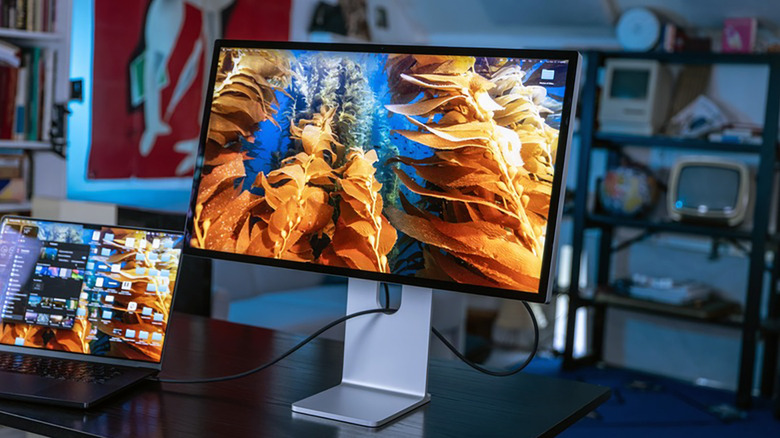
A MacBook isn't just a portable computer. It can also double as the heart of a desktop workstation. To do that, you need at least one external display. But how many can you connect? Well, it isn't just a matter of how many ports your laptop has. It's more about the chip inside.
Apple's current lineup ranges from the budget MacBook Neo, which only supports one external display, to the M5 Max MacBook Pro, which can drive up to four. Resolution and refresh rate variables prevent this from being a cut-and-dried answer, but the basics are simple enough to understand.
Apple's current MacBook lineup
Here's how Apple's current lineup breaks down:
- MacBook Neo – one external display
- MacBook Air (M5) – two external displays
- MacBook Pro (M5) – two external displays
- MacBook Pro (M5 Pro) – three external displays
- MacBook Pro (M5 Max) – four external displays
These figures aren't affected by whether you're using the built-in screen. In other words, clamshell mode (closing the MacBook's lid) doesn't raise the limit.
Resolution and refresh rate

Devindra Hardawar for Engadget
Resolutions and refresh rates are where we start to get into the weeds. For example, the M5 MacBook Air supports up to two 6K displays at 60Hz or two 4K displays at 144Hz. If you only want one display? Then you can do 8K at 60Hz, 5K at 120Hz or 4K at 240Hz.
Here's a more detailed list with resolutions and refresh rates:
-
MacBook Neo
- Maximum: one 4K display at 60Hz
-
MacBook Air (M5)
- One display: Up to 8K at 60Hz, 5K at 120Hz or 4K at 240Hz
- Two displays: Up to two 6K at 60Hz or two 4K at 144Hz
-
MacBook Pro (M5)
- One display: Up to 8K at 60Hz, 5K at 120Hz or 4K at 240Hz
- Two displays: Up to two 6K at 60Hz or two 4K at 144Hz
-
MacBook Pro (M5 Pro)
- One display: Up to 8K at 60Hz, 5K at 120Hz or 4K at 240Hz
- Two displays: One up to 8K at 60Hz, 5K at 120Hz or 4K at 240Hz
- Plus a second up to 5K at 120Hz or 4K at 200Hz
- Three displays: Up to three 6K at 60Hz or three 4K at 144Hz
-
MacBook Pro (M5 Max)
- Can drive many combinations, including:
- Up to two 8K displays at 60Hz
- Up to four 6K displays at 60Hz
- Up to four 4K displays at 144Hz
- Can drive many combinations, including:
These are Apple's official maximum configurations, but your results could vary depending on several factors: your specific cables or adapters, the resolution and refresh rate of your monitors and which dock you use.
MacBook Neo: the most limited model
Devindra Hardawar for Engadget
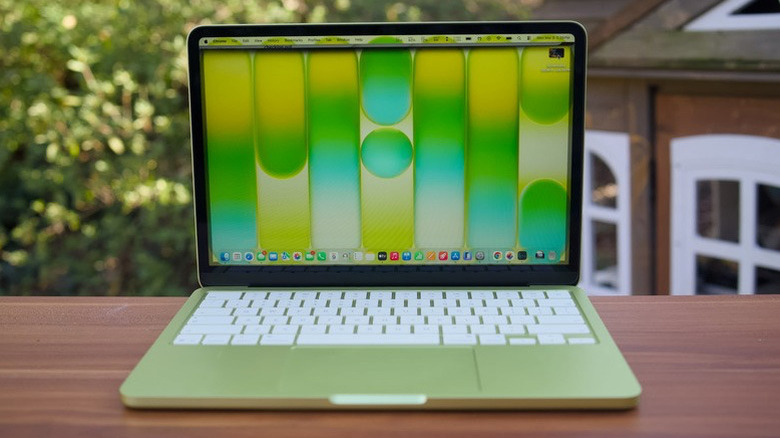
The MacBook Neo is a surprisingly capable laptop for its mere 8GB of RAM, but external display support is one area where it shows its limits. Although it has two USB-C ports, only one can drive a single external display.
One important thing to note: the port closest to the back of the laptop is the high-speed (USB 3) connection, and only it can support video output. The most you'll get out of it is one external display at 4K resolution and a 60Hz refresh rate. The further-forward (USB 2) port can't carry a display signal and is limited to less demanding accessories or charging.
The Neo also doesn't support Thunderbolt, so Thunderbolt-only displays and accessories aren't part of the deal.
That limited support may be all you need for a simple home office setup. But if you want to hook up multiple monitors or something like, say, a 5K ultra-wide, the MacBook Neo isn't the machine for you.
Thunderbolt docks and USB hubs
Amy Skorheim for Engadget
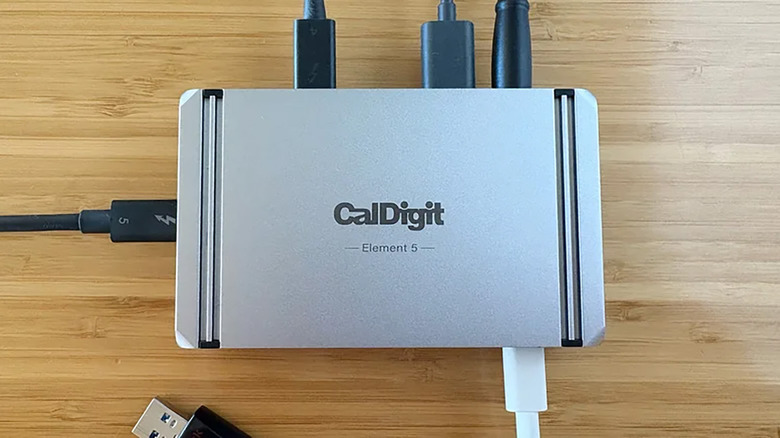
If you're setting up a full-on workstation for your MacBook Pro or Air, a quality Thunderbolt dock can be like a miracle worker. It lets you connect multiple accessories through a single cable: external displays, storage drives, keyboards, mice, Ethernet and more. It can even power your MacBook on top of that.
But even the best Thunderbolt dock (looking at you, CalDigit) doesn't automatically increase your MacBook's display output. It can make your setup easier and, in some cases, route multiple monitors through one port. But pushing past Apple's display limits isn't in the cards. (And remember, the Neo doesn't even work with Thunderbolt.)
Basic USB hubs are even more limited. Although some include HDMI or DisplayPort output, they still can't raise your MacBook's official display limit.
DisplayLink: A cheat code for some setups
If you want to go over Apple's official limits, DisplayLink is the most popular workaround. However, there are caveats.
It does this through a combination of hardware and software. First, you need a DisplayLink-compatible dock or adapter. Then, install the DisplayLink Manager app on your Mac and grant it Screen Recording permission. The software compresses the display image and sends it over USB to the DisplayLink chip inside the accessory. It then converts that signal into video for your monitor. This can allow you to connect displays beyond Apple's official limits.
For basic office work, it might be all you need. But keep in mind that it isn't a great solution for more visually demanding tasks like gaming. In addition, some copy-protected video streams (including Netflix, Disney+, and YouTube TV) may not play at all while a DisplayLink screen is connected, though local video and basic YouTube should be fine.
If your dock supports both native video output and DisplayLink, use the former when possible. You'll get better refresh rates and responsiveness, without any content-blocking concerns. Save DisplayLink for those "break glass" scenarios where you need more displays than your Mac officially supports.
Older models: Where to start
We narrowed the scope here to Apple's current MacBook lineup, but what about older models? Well, some of the rules are different there. For example, on some past MacBooks, the number of supported displays increases when your laptop is closed.
For those details, it isn't hard to find Apple's official specs. You can identify your MacBook model by clicking the Apple menu (upper-left corner of the screen) and clicking About This Mac. Then look up your model's external display specs on Apple's support website.