 By Engadget | Created at 2026-09-20 17:57:06 | Updated at 2026-09-20 18:40:25
1 hour ago
By Engadget | Created at 2026-09-20 17:57:06 | Updated at 2026-09-20 18:40:25
1 hour ago
You might be surprised at all the things it can do.
Wongsakorn 2468/Shutterstock
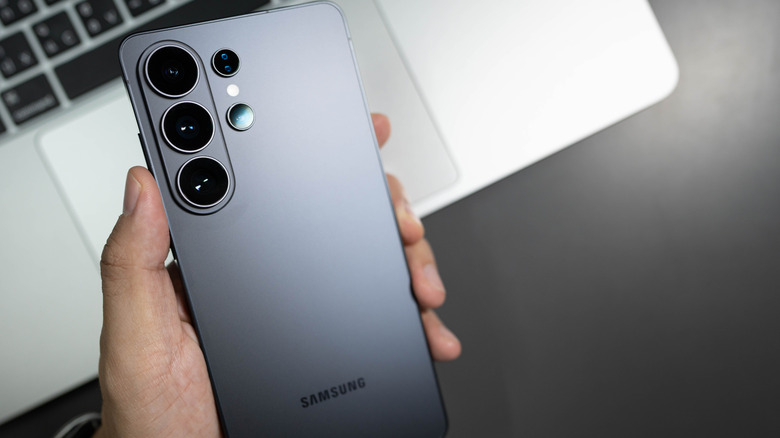
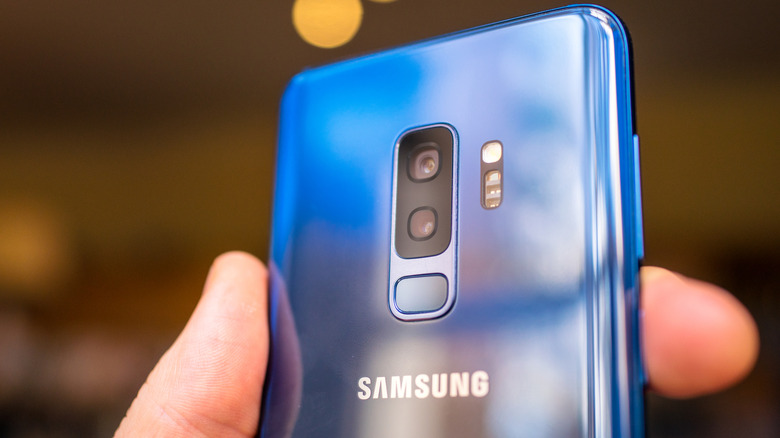
Did you know that Samsung stopped making phones with traditional power buttons in 2019? That button beneath your Samsung phone's volume button is actually a multifunctional and customizable side button. If you used any Samsung flagship phone between the S8 and S10, you probably noticed a fourth physical button on the side of the device: the infamous Bixby Button. That fourth button didn't disappear; it actually got merged with the power button on Galaxy phones from the Note 10 series and beyond.
By default, a short press on the side button turns the screen on and off, a long press activates Samsung's Bixby assistant, a double press opens the camera; long-pressing the side button plus volume-down button opens the power menu, and a short press of the same buttons takes a screenshot. The good news is that Samsung lets you remap nearly every action tied to the side button, so a phone that keeps accidentally summoning Bixby can instead open a favorite app with the same press. Even devices that still rock the dedicated Bixby button from the S8 to S10 era can be customized. And everything can be done right in your phone's settings, no super-secret menu or code needed. Do note that for Galaxy Z Flip owners, the functionality of the side button can change depending on whether the device is open or closed.
How to customize the side button on a Samsung phone
Customizing your Samsung phone's side button is pretty straightforward; go to Settings > Advanced features > Side button. From here, you can remap the button; a double press can be set to open Camera, Flashlight, Magnifier, Voice Recorder, Samsung Notes, Modes and Routines, Samsung Capture or a chosen app. Unfortunately, the long-press option is limited to just assistant apps like Bixby, Google Gemini, and other AI assistants including ChatGPT and Claude. Otherwise, you can set the long press to pull up the power-off menu.
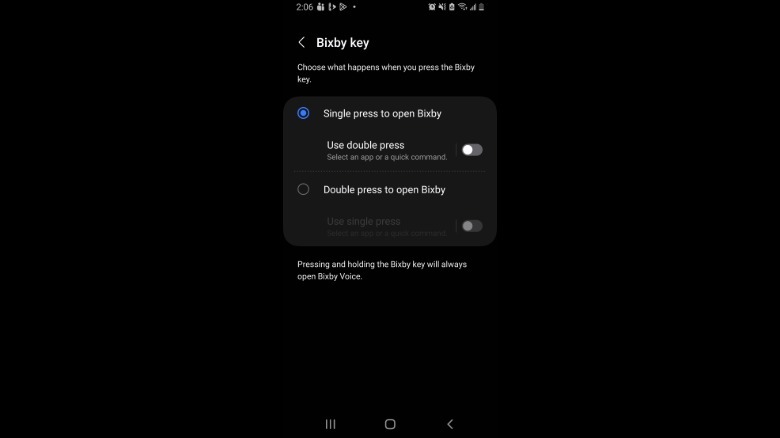
On Samsung devices with a separate physical Bixby button, namely the Galaxy S10 series, S9 series, S8 series, Note 8 and Note 9, a long press will always open Bixby Voice. You can customize the button's double-press and single-press functions, but not at the same time; one has to open Bixby Home.
 Screenshot by Isaac Egbon (Samsung)
To remap the button, open Settings > Advanced features > Bixby Key. Here, you can customize the button to either open any app of your choice or run a command.
Cool ways to customize the side button
Georgeclerk/Getty Images
Using Modes and Routines is one of the best ways to take advantage of your side button. For example, if you spend a lot of time driving, you can set the side button to turn on Driving Mode. You can make this mode trigger actions including hands-free calling, opening maps, reading messages aloud and auto-replying to texts. There are myriad things you can do when you pair Modes and Routines with your Samsung phone's side button.
If you like to take down quick thoughts or capture the beginning of a meeting before you can grab a notepad, you can use the side button to start recording. In your settings, you can assign Voice Recorder to begin recording with a simple side-button double press. No need to unlock the phone or hunt for the app; you can begin recording the moment inspiration strikes.