 By Engadget | Created at 2026-10-10 15:46:09 | Updated at 2026-10-10 17:31:46
3 hours ago
By Engadget | Created at 2026-10-10 15:46:09 | Updated at 2026-10-10 17:31:46
3 hours ago
Smart speakers have gotten better at comprehending you, but they don't get it right every time.
Substancial/Shutterstock
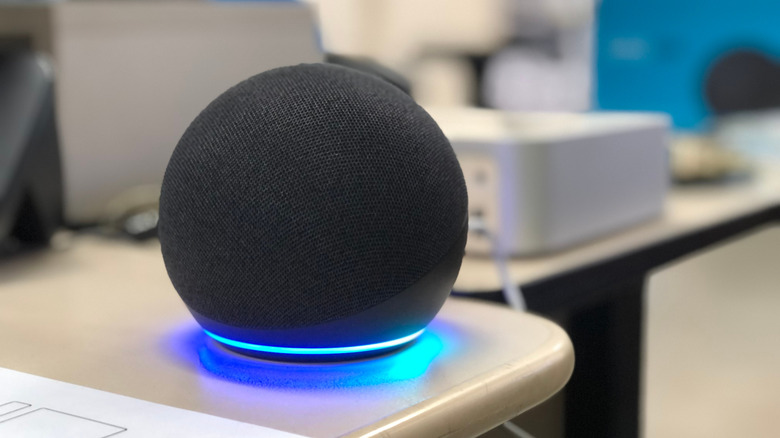
Because smart speakers are so convenient, you notice little annoyances right away when they stop working so smoothly. A common issue is your speaker misunderstanding you, whether due to your proximity to the speaker or other noise in the house. Luckily, these issues are pretty simple to fix.
Many of the fixes are common across top smart speaker models, while each of the big names (Google Home, Apple HomePod and Amazon Echo/Alexa) require some specific know-how to reduce misunderstanding.
Universal methods to improve understanding with smart speakers
smartboy-123/Shutterstock
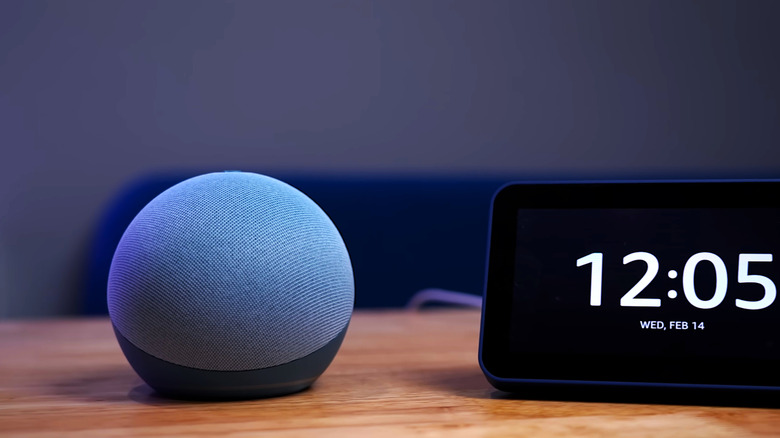
First, check that your speaker is clean. Use a dry cloth to wipe the unit down if there's a buildup of dust or gunk. If issues persist, try moving your speaker to another spot or an entirely different room. Background noise, echoes and distance (whether too close or too far from your own voice) can all make a big difference. Try to avoid having smart speakers near regular noise sources like fans or surround sound speakers. Ideally, keep it at least one foot away from walls.
Having multiple speaker units can also cause issues if one taking your request isn't the closest. If the app allows, try lowering the sensitivity of the problematic speaker. For Echo devices, you can change the wake word per-device to avoid activating the wrong one. Failing those fixes, try to keep devices as physically separated as you can.
After shifting it around, test a few voice commands to see if there's a marked difference in its comprehension. It's also worth checking that you're issuing a command your speaker is actually able to execute. And of course, be sure you're speaking clearly and concisely.
When working with other smart products, make sure your linked smart home devices have unique names. Your speakers can mistake one device for another if multiple have a similar title. Use a few unique words in each name for maximum clarity, and give each room a clear label in your home app as well.
Specific fixes for Alexa, Google Home and HomePod
Justin Sullivan/Getty Images
If your speaker is still failing to understand your commands properly, it might be time to play with some settings. The best change is setting up voice recognition so the assistant has an easier time recognizing the way you speak. For an Echo, open the Alexa app and navigate to More > Settings > Account Management > Your Profile > Voice ID, where the app will ask you to say various commands to set up a Voice ID it recognizes across platforms.
For Google-powered speakers, open the Google Home app and head to Settings > Google Assistant > Voice Match to set up Voice Match for all of your connected devices. You can have up to six distinct voices per home.
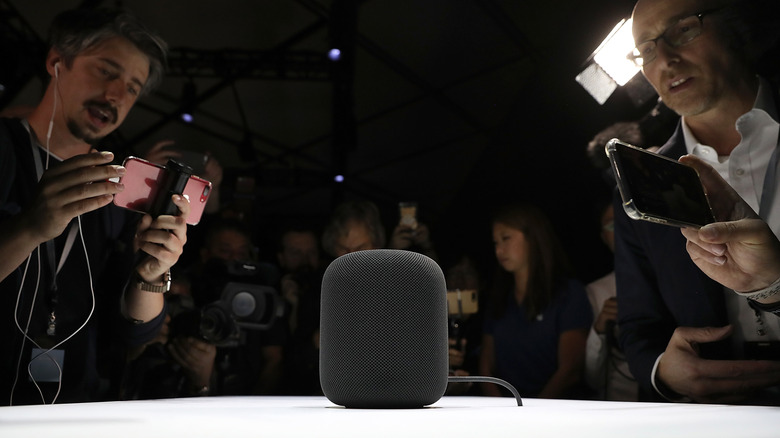
For an Apple HomePod speaker, open the Home app and tap the More button (three dots) to access Home Settings. There, open your user profile and turn on Recognize My Voice. For a smoother experience across devices, open Settings on your phone, tap your name at the top of the page, then go to iCloud. Tap See All by Saved to iCloud, then enable Siri.
If none of these methods improve your issue, restart your speaker by unplugging it for a minute and then plugging it back in. If you suspect a major issue, you may need to go a step further and perform a factory reset. This will reset all your custom settings, so only do this if nothing else has worked.