 By Engadget | Created at 2026-09-21 23:08:14 | Updated at 2026-09-21 23:41:59
41 minutes ago
By Engadget | Created at 2026-09-21 23:08:14 | Updated at 2026-09-21 23:41:59
41 minutes ago
ChromeOS Flex can bring new life to an old PC that isn't receiving security updates anymore.
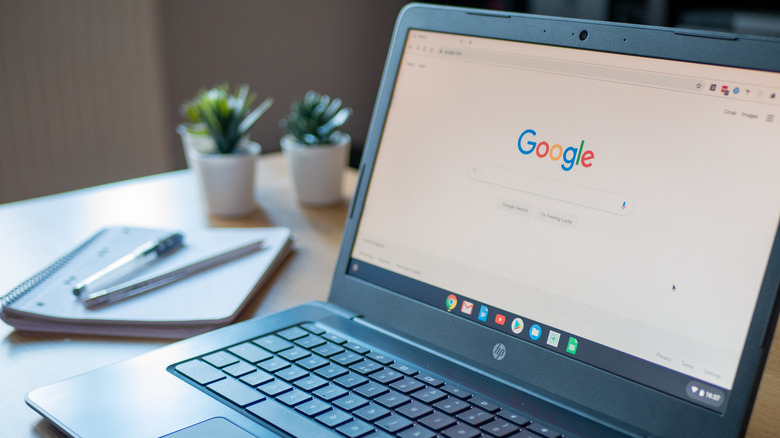
Vantage_DS/Shutterstock
Eventually, your aging computer will no longer receive new security patches. Windows 10 reached its end of life in October 2025, though extended security updates are still offered through October 2027. Older Macs will reach end-of-life status before long too; with macOS 27 dropping support for Intel Macs, security patches will only last as long as macOS 26 is supported.
But losing software support doesn't automatically make the underlying hardware obsolete. Even if your old computer feels slow, an alternative operating system like Google's ChromeOS might be all you need to make it useful again. ChromeOS requires fewer resources than Windows and typically offers a smoother experience on lower-end computers, making it a good choice for extending the life of an old PC.
Historically, the only way to access ChromeOS was to buy a Chromebook with it pre-installed. But that changed a few years ago when Google introduced ChromeOS Flex, an official way to install the operating system on your own hardware. The process only takes about an hour, and you may already have everything you need to get started.
How to install ChromeOS Flex
ChromeOS Flex requires an Intel or AMD CPU, 4GB of RAM and 16GB of storage. The age of the hardware matters too, since CPUs from 2012 or earlier don't support newer ChromeOS versions. Still, those are relatively modest requirements when compared to Windows 11.
You'll also need a USB flash drive with 8GB or greater capacity; everything on it will be deleted as part of this process, so be sure to back up any files if needed. Finally, you must have an existing computer with Chrome installed (download Chrome if needed) to create the installation media. This can be the device you intend to use for ChromeOS Flex, as long as it's currently functional.
After you've gathered everything you need, open Chrome and install the Chromebook Recovery Utility extension. Insert your flash drive into a USB port and open the utility via the Extensions button (which looks like a puzzle piece) located at the top-right corner of Chrome. Click Get started, then select Google ChromeOS Flex in the dropdown menus on the next page, followed by Continue. You should be able to select your USB flash drive and start the process at this point.
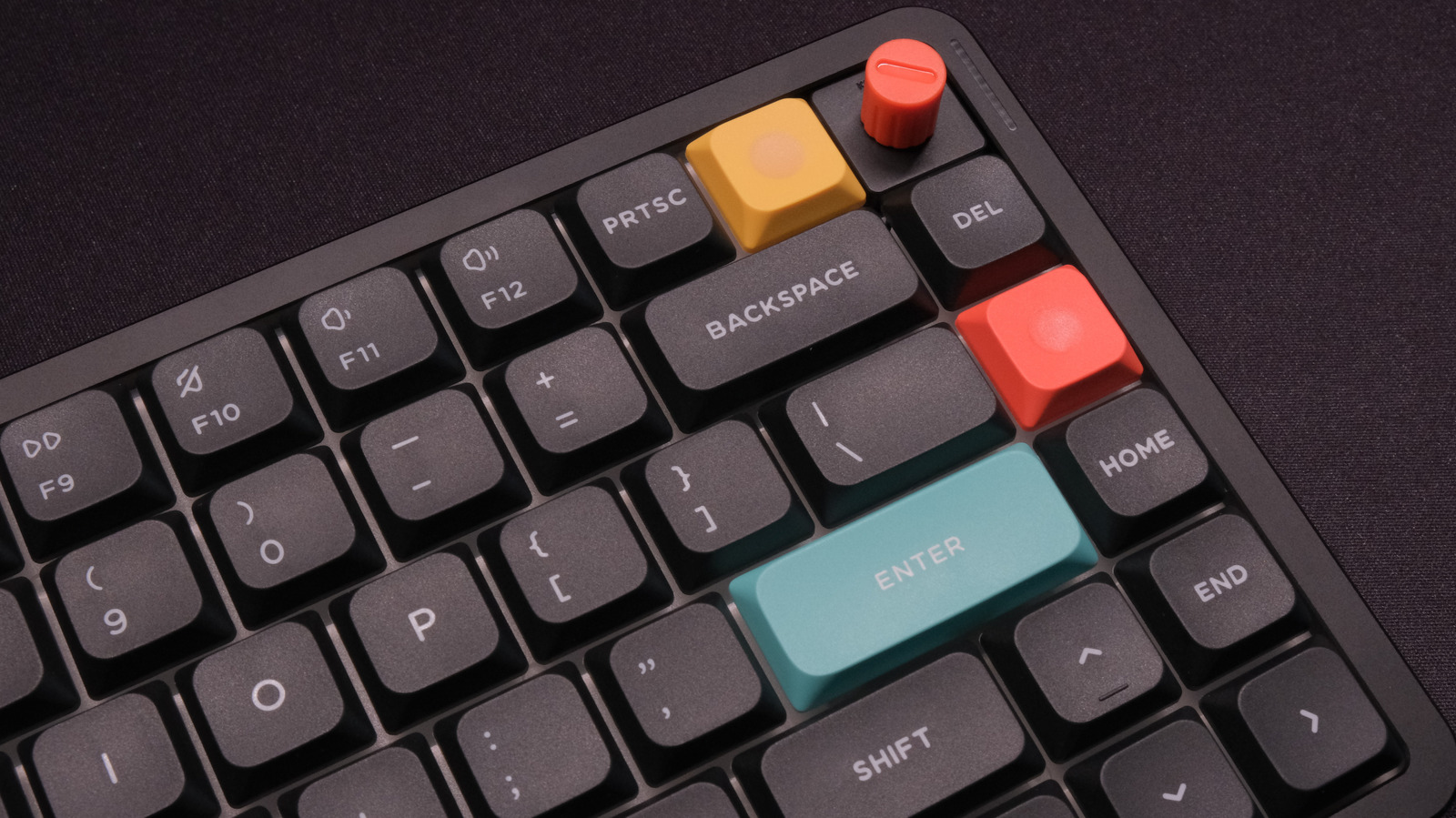
Once the utility has prepared the flash drive, insert the drive into the computer you want to install ChromeOS Flex on. Upon restarting or powering on this machine, you'll need to repeatedly press a key like F10, F12 or Del on your keyboard to enter the computer's boot menu — search your model online or check the manual if you're not sure which key to use. This can take a couple of attempts; if you see the Windows loading screen, restart and press the key sooner.
In the boot menu, select your flash drive (it may be labeled as something like USB: ChromeOS Flex) and wait for it to load. You'll be greeted with a setup wizard, where you can choose between installing the operating system or trying it out. The latter doesn't retain any data between restarts, so it's not meant to be used long-term. You might want to try it first to make sure everything works with your hardware.
When you're ready to install the new OS, be aware that doing so will erase everything on your computer, so make sure you've run a backup. After you choose Install ChromeOS Flex and the installation completes, remove the USB drive and restart the computer to begin using the operating system.
What are the downsides of ChromeOS Flex?
MonicaZ82/Shutterstock
While ChromeOS Flex can extend the life of your device after Windows or macOS updates end, you can't expect its support to last forever. The exact support end date varies significantly depending on your exact hardware configuration, though Google maintains a list of ChromeOS Flex-certified models with defined support windows. Uncertified hardware can run ChromeOS Flex just as well in my experience, so don't get discouraged if your device isn't on that list.
Currently, you can't officially dual-boot ChromeOS Flex alongside Windows or another OS. You can technically install ChromeOS Flex on a flash drive and manually boot to it, while leaving Windows on your primary drive untouched, but this will lead to noticeably slower performance.
One major annoyance I've run into with ChromeOS Flex is the lack of biometric authentication. In fact, you can't even set up a PIN to log into your account upon boot; this is only possible on a native Chromebook since it has dedicated security hardware to enable these features. Even if your PC includes the necessary hardware, ChromeOS Flex won't take advantage of it. It may sound minor, but entering your Google account password to log into your PC or laptop every single time becomes a pain.
ChromeOS Flex also doesn't include the Google Play Store, even though the vast majority of Chromebooks do. In fact, it lacks the Android virtual machine entirely, so you cannot sideload apps either. Depending on your hardware, you may be able to enable Linux support, but you'll have to install apps through the command line. Google maintains a dedicated support page on the differences between full-fledged Chromebooks and ChromeOS Flex installations, which is worth checking out.
Other than that, ChromeOS Flex is a lightweight operating system with a performant web browser and little else. That's exactly what makes it perfect for an old but still functional PC. Installing Linux is always another option, but ChromeOS Flex involves a lot less fuss.