 By Engadget | Created at 2026-09-26 18:57:18 | Updated at 2026-09-26 19:43:48
1 hour ago
By Engadget | Created at 2026-09-26 18:57:18 | Updated at 2026-09-26 19:43:48
1 hour ago
You don’t need a Raspberry Pi or mini PC to start experimenting with Home Assistant.
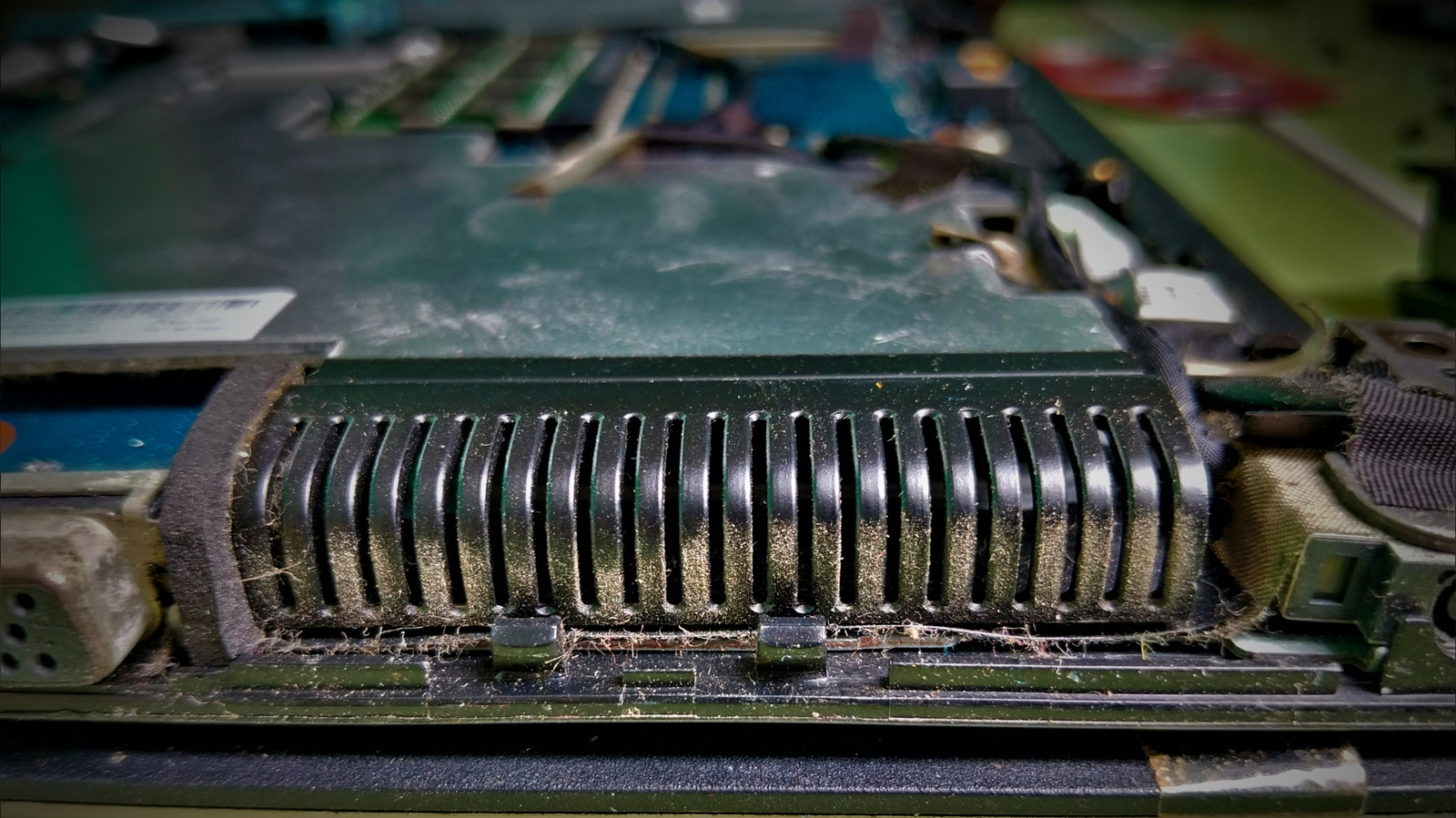
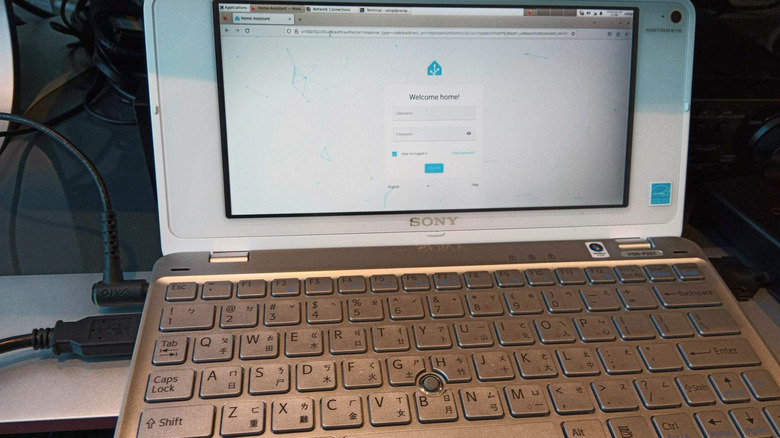
That crappy old laptop collecting dust in your closet might have another use after all. With some open-source software and a little patience, you can give it a second life as a smart home control system. It may not be the perfect hardware for the job, but it lets you get started with what you already have.
A smart home composed of devices from several different companies can make for a messy setup. Although standards like Matter and Thread are designed to smooth that out, fragmentation still hasn't been solved. So, some people prefer to build their own solution. The software that holds it together is Home Assistant, an open-source platform that acts as a local control center for different brands' smart home devices.
Home Assistant can run on a wide range of hardware, from premium gaming PCs to Raspberry Pis. But that dusty old laptop is another option. If you aren't ready to buy dedicated hardware just for Home Assistant, an otherwise retired laptop can at least give you a good trial run.
Why Home Assistant?
[deleted user] / Reddit
Home Assistant can serve as the brains of a scattered collection of smart devices. It supports integrations for many popular services, including Philips Hue, Google Nest, Ring, Sonos and Ecobee.
Fair warning: Home Assistant isn't always the most user-friendly platform. It has a bit of a learning curve, and its interface probably isn't as intuitive as you'd like. (Although you could say the same for many native smart home apps.) But if you're open to some tinkering, you might find a lot to like.
Home Assistant makes the most sense if you have a mix of smart home devices from different brands that won't otherwise work together. (If yours is already working smoothly, this probably isn't for you.) In exchange for some setup friction, the software can ease your reliance on your devices' companion apps. Some of the platform's integrations do still rely on manufacturer accounts or cloud services, but others can run locally, bypassing company servers. Part of the appeal is taking back control of at least one corner your digital life from big tech companies.
Home Assistant supports automations, scenes, scripts and other features that help those devices work together. You can set a rule that turns on your coffee maker on when you dismiss your morning alarm or one that dims the lights and locks the doors when you start a movie. (Provided you have all the requisite smart home gear.) You will need to run Home Assistant on hardware that stays on all the time, but hey, it's not like that old laptop was doing anything else, right?
Sizing up your laptop
Fortunately, Home Assistant doesn't need a powerful, or even remotely new, computer. A dated laptop that struggles with modern apps may still be perfectly capable of listening for sensor updates and toggling lights. The bigger question is whether it's something you'll be happy to leave in one place and powered on.
That rules out any laptop you take to work, travel with or shut down at night. A Home Assistant device should sit quietly in the background, keeping your smart home humming without interruption. Power it down or take it with you, and your automations lose their brains.
Storage requirements aren't particularly demanding. A solid-state drive (SSD) might make life easier than an old mechanical hard drive via faster boot times and responsiveness. But a spinning hard drive can still be fine. Home Assistant recommends an ethernet connection for stability, so setting up near your router is ideal. Wi-Fi can work, too, although it's more vulnerable to interference, dropouts and other connection hiccups.
Battery: Proceed with caution
Before you leave the laptop running around the clock, make sure its battery is in good condition — or remove it if the laptop can safely run without one. If the battery is in good shape, it can act as a built-in safeguard during brief power outages. (Although its usefulness will be limited unless your router or other networking equipment also has a backup power supply.) Either way, a swollen, leaking or otherwise damaged battery isn't something you want to roll the dice with.
A battery that doesn't hold the same charge as it used to isn't automatically a problem. But if it's swollen or damaged, stop using it and follow the laptop manufacturer's instructions for replacement or removal. And if your laptop has a removable battery and you decide to run Home Assistant without it, confirm that your model can operate normally from its power adapter alone.
Some laptops let you cap the maximum charge level, either through manufacturer software or a BIOS setting. That's probably worth using if it's available, since keeping a lithium-ion battery at 100 percent for long periods can make it degrade faster. Older laptops may not offer that option, so check which battery management features your model supports.
Using the laptop as a trial run
Although Home Assistant is Linux-based, you don't need to install the operating system or become a command-line enthusiast to get started. A relatively low-commitment way to try Home Assistant is to run it inside a virtual machine (VM). This lets you keep the laptop's existing operating system, whether it's Windows, macOS or Linux, as Home Assistant OS (HAOS) runs inside that virtual environment.
Running Home Assistant in a VM does add some overhead, so an extremely weak laptop might struggle with it. But at least the requirements are fairly modest: When run in a VM, Home Assistant currently calls for at least 2GB of RAM and two virtual CPUs.
Free options include VirtualBox (Windows, macOS, and Linux), VMware Workstation Pro (Windows and Linux) and VMware Fusion Pro (macOS). Home Assistant provides VM images and setup instructions for several popular platforms.
If you plan to dedicate the laptop to Home Assistant, installing HAOS directly is a cleaner and permanent option. It replaces the laptop's existing operating system and avoids the extra overhead of running a VM. That could be especially useful for an underpowered laptop with little horsepower to spare. (Before you do so, check that the laptop's specs meet Home Assistant's x86-64 requirements.)
Whichever option you choose, the idea is for the laptop to be essentially invisible after the initial setup. Once you do that, you can manage Home Assistant from another device (via web browser) or with the mobile app. Just change the power settings so that closing the lid doesn't put it to sleep and leave the laptop sitting near the router with its screen off. (And if you're running it through a VM, check the host operating system's sleep settings as well.)
Getting started with Home Assistant
Smart Home Solver / YouTube
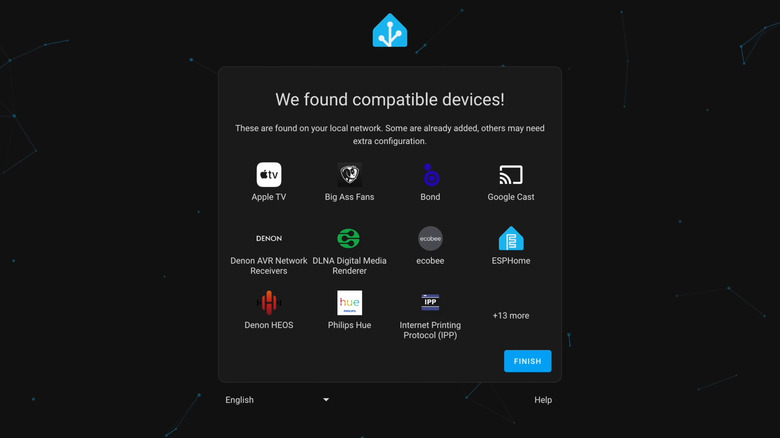
Home Assistant isn't exactly plug-and-play. It may discover some of your devices automatically, but others will probably require manual setup. Fortunately, there's plenty of documentation to help when you get stuck.
You might find that the best approach is to start small. Get a few smart plugs, lights or one room's worth of devices up and running. Then, see if you're feeling it enough to keep going. Pick something you currently do manually (or rely on another smart home app to handle), and try automating it with Home Assistant. Or, try duplicating a scene or automation you currently use through a manufacturer app. Most of all, be prepared to exercise a little patience.
Check electricity use
Using an old laptop costs nothing upfront, but running it around the clock still uses electricity. (And older laptops may use more power than a modern Raspberry Pi or mini PC.) If you want hard data, a plug-in power meter can tell you exactly what yours is drawing.
That doesn't necessarily make the laptop a bad choice. But, again, it may make more sense as a way to test Home Assistant than as your long-term server. See how well your devices cooperate, if you can live with Home Assistant's UX "quirks" and whether the whole setup is useful enough to keep. If so, you can always move to smaller, more power-efficient hardware later.
Home Assistant's backup and restore tools make that transition easier. Backups carry over your settings and automations, so you can restore them to a new device without starting from scratch.